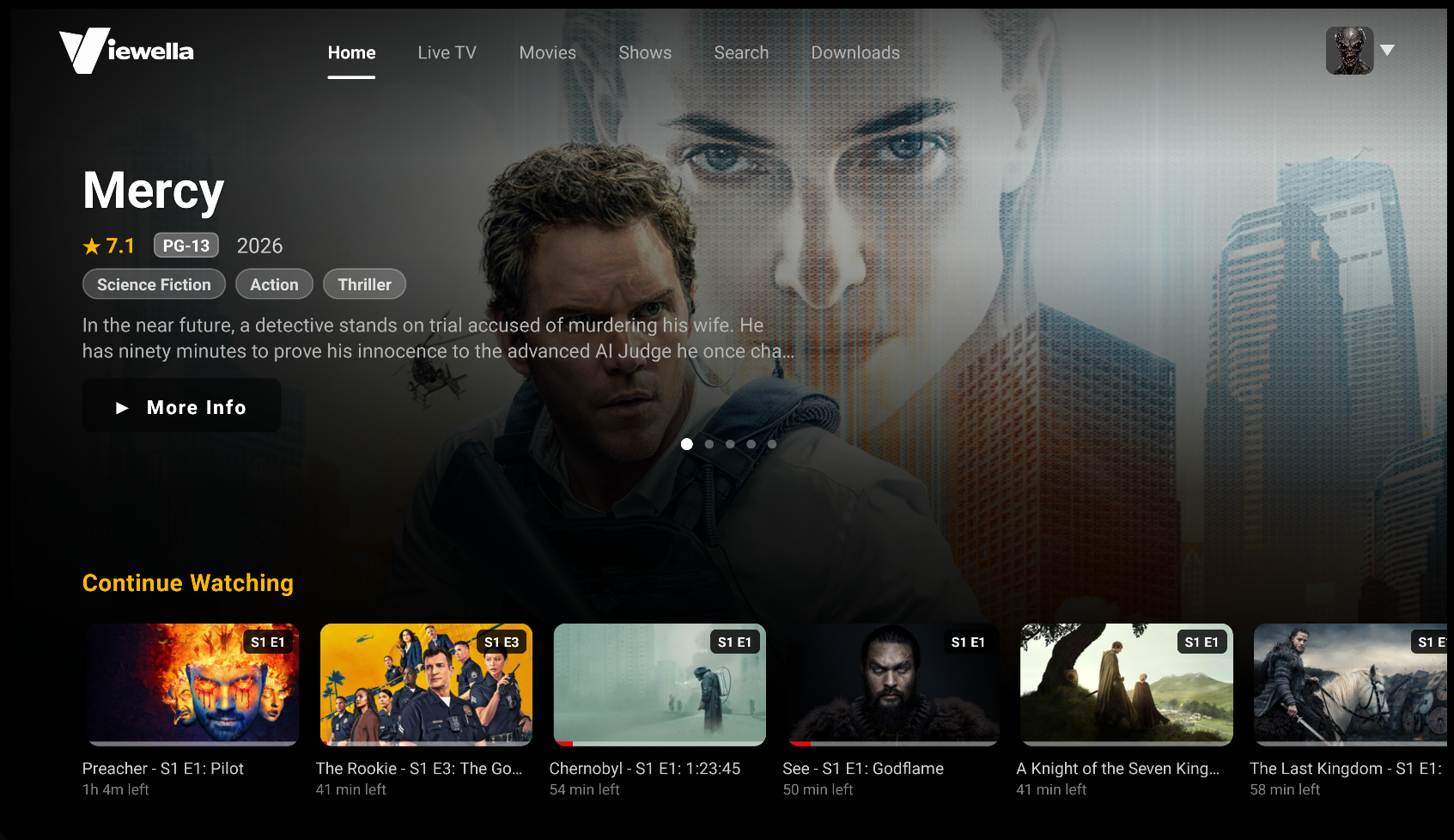
1) Install the Downloader App
Open the Google Play Store (or sideload it if your device doesn't have Play Store) and search for "Downloader" by AFTVnews.
- Tap Install and wait for it to finish.
- This free app lets you download and install APK files directly on your device.
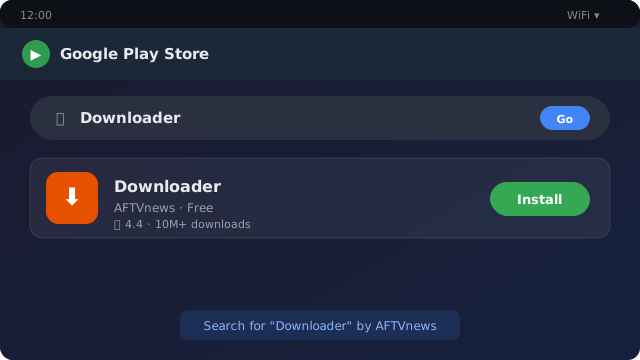
Search "Downloader" in the Play Store.
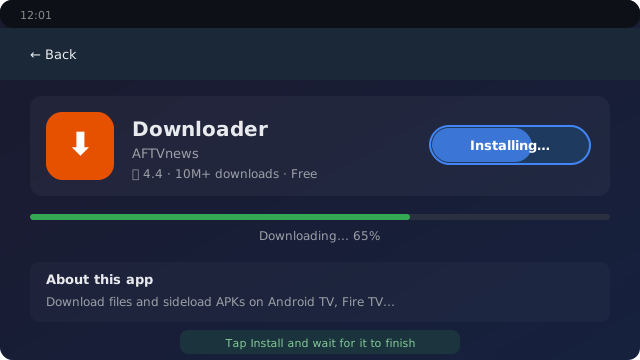
Tap Install to get the Downloader app.
2) Enable Unknown Sources for Downloader
Before you can install apps from outside the Play Store, you need to allow it:
- Android TV / Google TV: Go to Settings > Security & restrictions > Unknown sources and toggle Downloader to ON.
- Android phone/tablet: Go to Settings > Apps > Special app access > Install unknown apps, select Downloader and turn it ON.
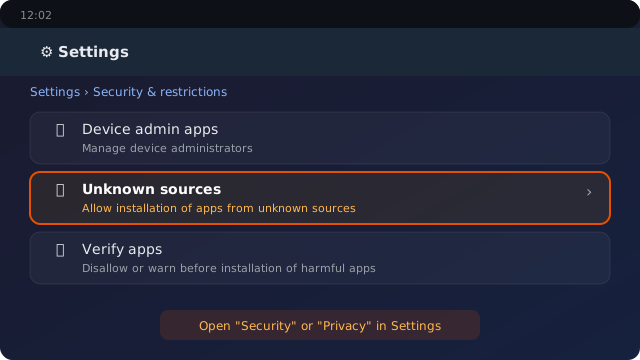
Open Settings and find Security or Privacy.
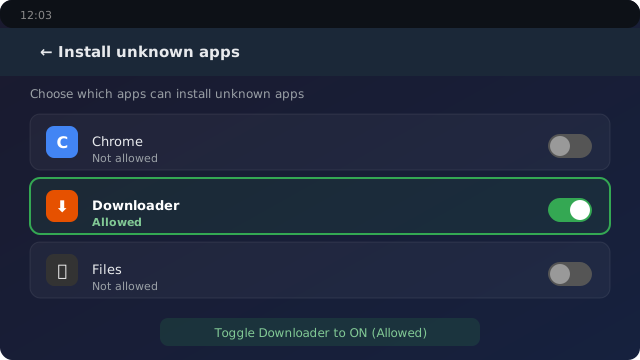
Enable Unknown sources for the Downloader app.
3) Open Downloader and Enter the URL
Launch the Downloader app. In the URL field at the top, type:
https://viewella.com/download
Press Go. The Viewella download page will load inside Downloader's built-in browser.
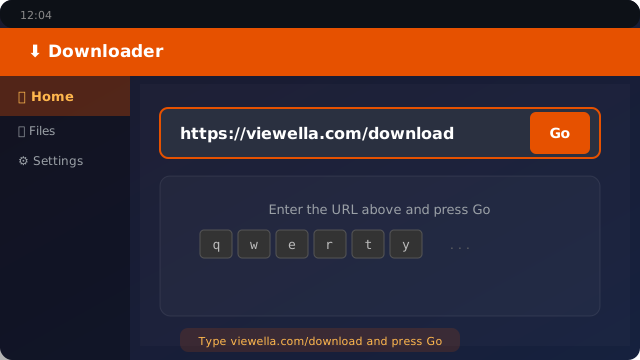
Type viewella.com/download in the URL bar and press Go.
4) Download the Viewella APK
Once the page loads, tap the Download Latest APK button. Downloader will begin downloading the file automatically.
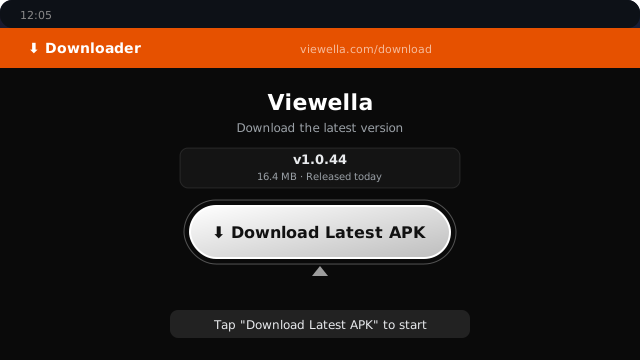
Tap Download Latest APK and wait for the download to complete.
5) Install the APK
After the download finishes, Downloader will automatically prompt you to install. Tap Install.
- If you see a "Blocked by Play Protect" warning, tap More details -> Install anyway. This is normal for apps installed outside the Play Store.
- Once installed, tap Done to return to Downloader, or Open to launch Viewella immediately.
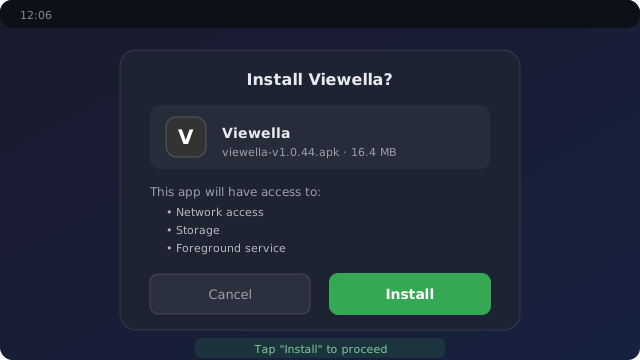
Tap Install when the prompt appears.
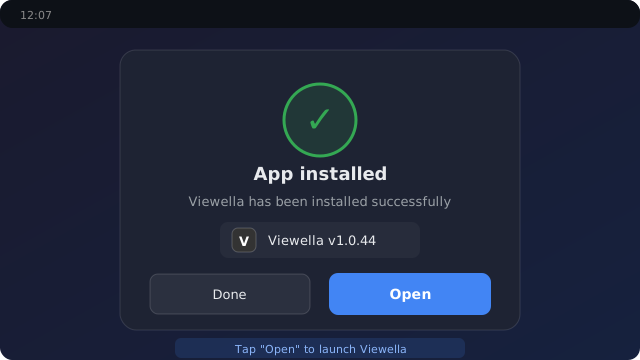
Tap Open to launch Viewella, or Done to finish.
6) Delete the APK (Optional)
Downloader will ask if you want to delete the APK file. Tap Delete to free up storage - the app is already installed, you don't need the file anymore.
7) Launch Viewella and Sign In
Open Viewella from your apps list. Sign in with your account or create a new one at viewella.com/signup.