How to Install Viewella on Firestick

Follow this step-by-step guide to install Viewella using the Downloader app on Amazon Firestick, including Unknown Sources setup.

Go to Download Page
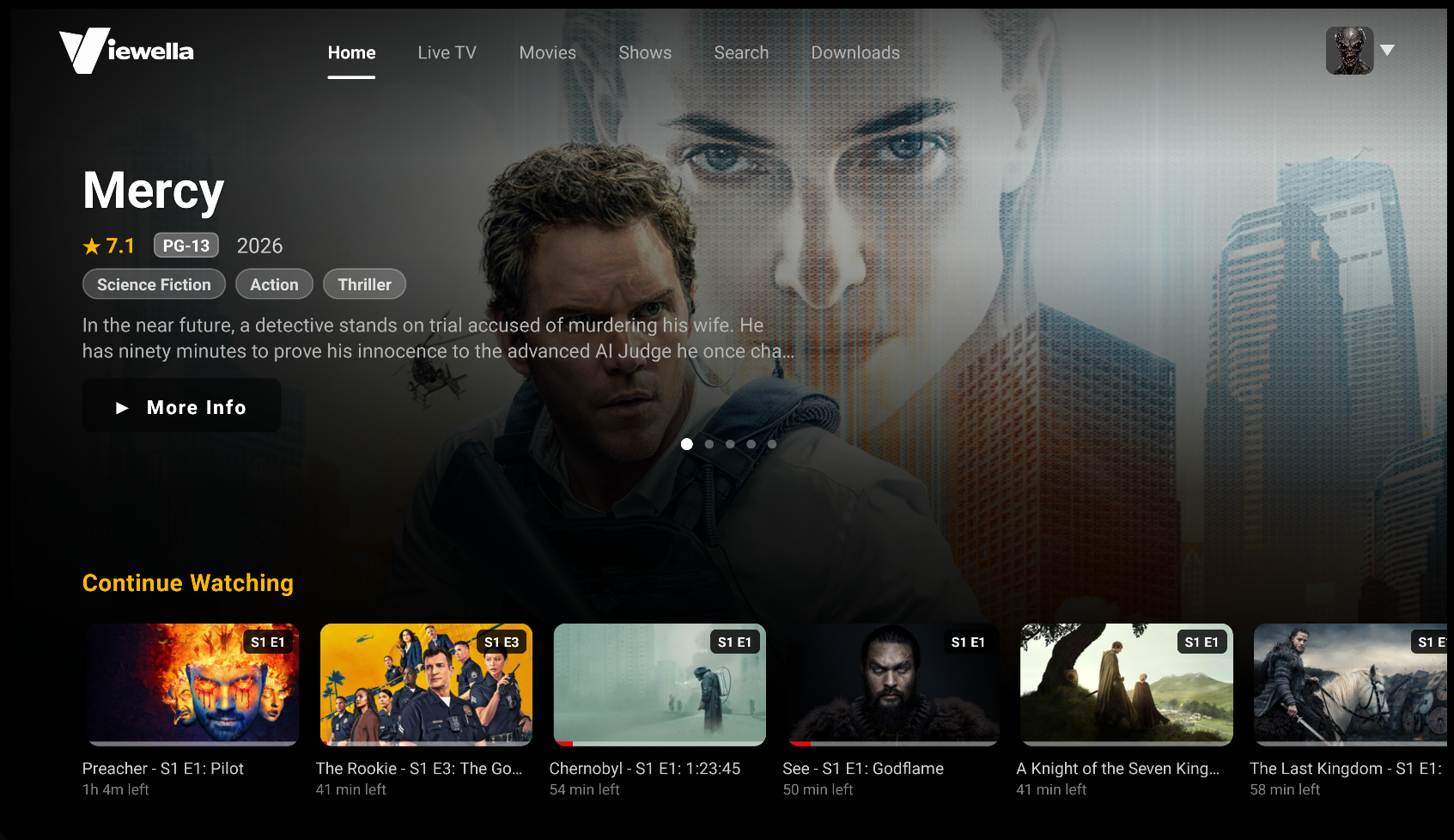
Viewella app screenshot

1) Reveal Developer Options (if you don't see it)

On newer Fire OS builds, Developer options is hidden until you unlock it once:

  • Go to Settings > My Fire TV > About.
  • Highlight your device name (for example, Fire TV Stick 4K).
  • Press the center/select button 7 times quickly.
  • You'll see a message like "No need, you are already a developer."
  • Go back one screen and Developer options will now be visible.
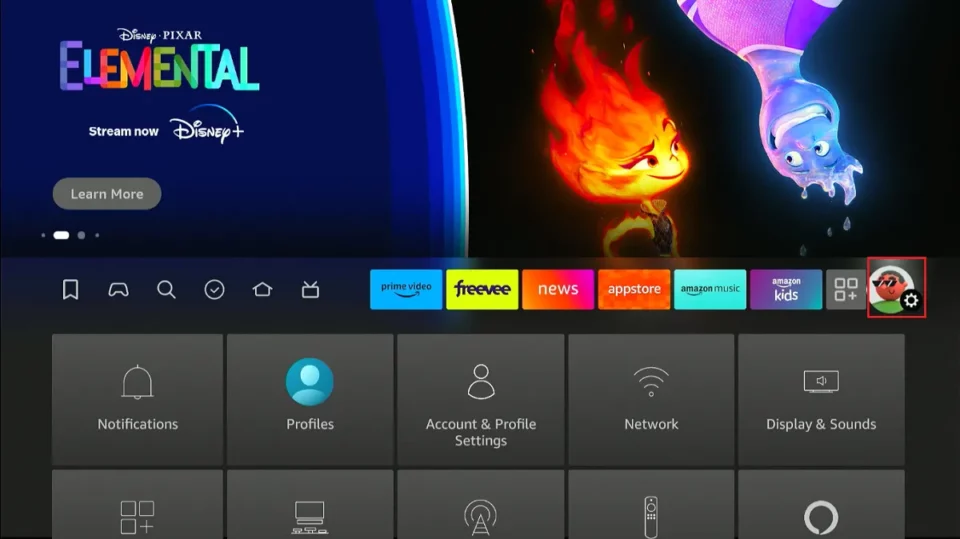
Firestick Settings screen

Step A: Open Settings.

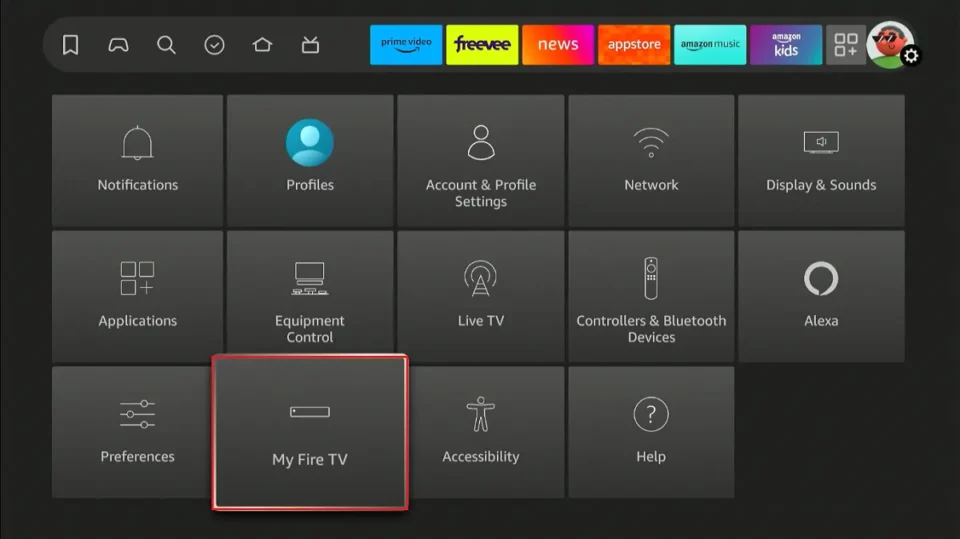
My Fire TV menu on Firestick

Step B: Enter My Fire TV, then open About.
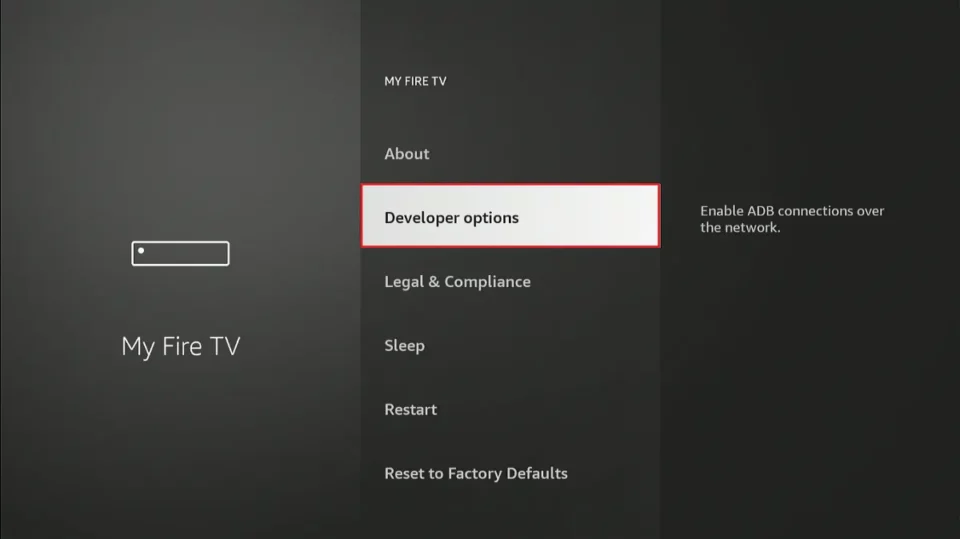
Developer Options menu on Firestick

Step C: Tap select on your device name 7 times to reveal Developer options.

Visual references adapted from FireStickTricks guide - How to Get Back Developer Options on FireStick

2) Install the Downloader App

From Firestick home, use Search and install Downloader by AFTVnews from the Amazon Appstore.

3) Enable Unknown Sources for Downloader

Go to Settings > My Fire TV > Developer options.

  • Select Install unknown apps (or Apps from Unknown Sources on older Fire OS).
  • Find Downloader in the list and switch it to ON.

4) Download Viewella APK

Open Downloader and enter this URL exactly:

https://viewella.com/download

When the page loads, tap Download Latest APK.

5) Install the APK

After the APK finishes downloading, Firestick will show an install prompt.

  • Select Install.
  • After installation, choose Done or Open.

6) Launch and Sign In

Open Viewella from your Apps list, then sign in with your account (or create one at viewella.com/signup).

Tip: After successful install, you can delete the APK file in Downloader to save storage.